Travel Planner Template: Spreadsheet, Notion Page or Printable?
Travel planner template options for one trip: compare a spreadsheet, Notion page and printable by bookings, edits, sharing and paper use.
By Ultimate Travel Planner by Cosmo Suite · Editorial policy
Published · 8 min read
The flight is booked, but the hotel confirmation lives in email, the daily plan is in a note, and the person traveling with you has an older copy. The hard part of a travel planner template is keeping those details together once plans start changing.
For a single trip, choose the format by the update you expect to make. A spreadsheet suits changing dates, bookings and costs in one file. Notion suits people who already plan with its pages and databases. A printable gives you a page to carry or mark up.
If you want the details connected before you start, use a trip planner spreadsheet that keeps bookings and daily plans together. The same structure can be made in a blank sheet, Notion, or on paper. This guide shows what to include, what each format handles well, and how to build a simple version for one trip.
The Plan in Brief
- Keep dates, stays, bookings and each day's plan easy to find.
- Choose a spreadsheet, Notion page or printable based on how you will update and use it.
- Treat paper as a day-of copy; keep an editable source for changes.
What a Travel Planner Template Needs to Hold
A travel planner template is a reusable layout for one trip's dates, stays, bookings and day plan. Start with those four basics. Add a budget, packing list or document notes when they help with a decision.
Start with the information that anchors the trip. Write the dates and the people traveling. Then list the flights, stays, timed tickets and transport you have booked. Those facts set the shape of the day. The free hours can fit around them.
A day block can be simple:
| Date | Stay | Morning | Afternoon | Evening | Bookings |
|---|---|---|---|---|---|
| Mon 17 May | Alfama apartment | Sintra tour, 09:30 | Pena Palace | Dinner in Bairro Alto | Sintra day tour |
[Original data] This example uses one day from the included Lisbon and Porto sample trip. Your own template can start with the same columns, even if you use only a few of them. Add a budget column if cost decisions affect the plan. Add a packing list if several people need to prepare separately.
Keep each detail near the day or decision it affects. Put a hotel confirmation beside the dates it covers, a tour time beside that day's plan, and a packing reminder on a list you can check before leaving. If the same detail appears in several places, a change means correcting each copy.
If you are starting with a blank grid, see this travel itinerary template with a day-by-day layout. Keep three answers easy to find: where am I staying tonight, what is booked today, and what remains open?
One Day From the Lisbon and Porto Sample Trip
The sample trip shows how a booking can sit beside a daily plan. It covers Lisbon and Porto from 14 to 23 May 2027 for two travellers. Day 4 is Monday 17 May: the stay is the Alfama apartment, the morning booking is a Sintra tour at 09:30, the afternoon is Pena Palace, and dinner is planned for Bairro Alto.
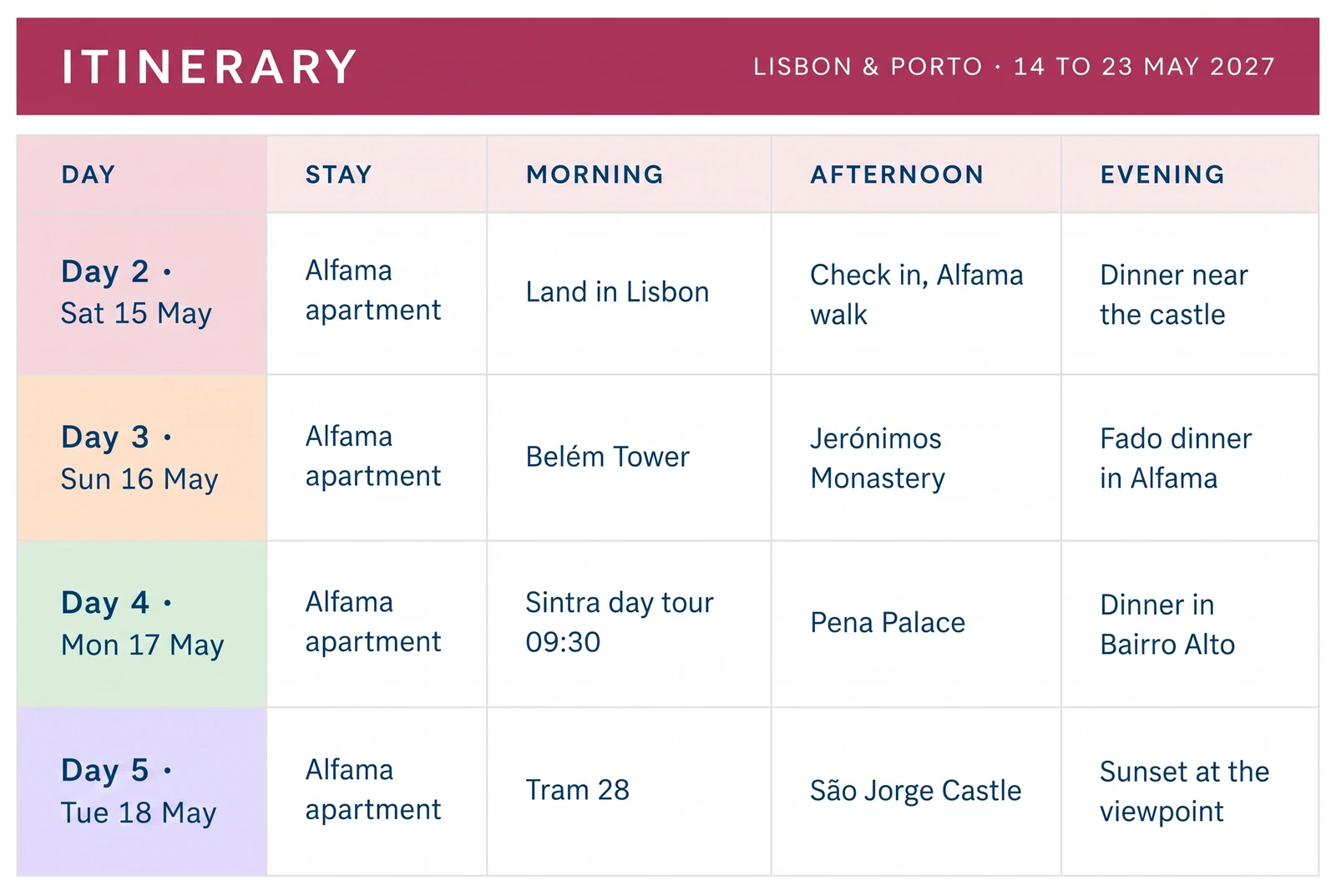
That block gives the group a quick view of the day. The separate Bookings list holds the confirmation number and other booking details. In the product sample, the stay and booking appear on the relevant itinerary days, so the day plan and booking list do not need to be typed as separate records.
You can make a similar connection in a spreadsheet with formulas, or keep one clear booking record and refer to it from your day plan.
Travel Planner Template: Spreadsheet, Notion or Printable?
The best format depends on what changes during your trip and where you want to see the plan. The table covers format trade-offs; individual templates and apps vary.
| Format | Works well when | Watch for | Before you leave |
|---|---|---|---|
| Spreadsheet | Dates, bookings and costs sit in rows, and you want calculations or a flexible grid | A blank file needs columns and formulas; a wide sheet may be awkward on a phone | Share the right access, then print the useful sheet or range if needed |
| Notion page or database | You already use Notion and want trip notes alongside structured entries | You need to set up the database and decide which views matter | Download the pages you need in the desktop or mobile app if you may be offline |
| Printable page | You want a one-day prompt, a paper backup or space for handwritten notes | Changes do not update on the page; you need to print a new copy | Check the page size and keep the editable details somewhere current |
A spreadsheet is useful when one change should be reflected in a few related places. It can hold the booking list, day plan and budget in the same file. Google Sheets lets you select a sheet or cell range and set page breaks, margins, orientation and paper size before printing (Google Sheets print help). Excel documents printing a worksheet, workbook or selected area, with a preview before printing (Microsoft's Excel print guide).
Notion works well when you already use its page and database structure. Each row in a Notion database is a page, and properties can label or sort entries (Notion's database guide). That gives you a list of bookings with a place to open each one's notes. If mobile access matters away from Wi-Fi, Notion's help says to make pages available offline in its desktop or mobile apps. Subpages do not download automatically, and a database page includes the first 50 rows in its first view (Notion's offline guide).
A printable is the simplest day-of view. You can write down the date, address, time and confirmation details, then keep the page in a folder or bag. It is useful when you want fewer screens during a day. It becomes stale when a time or hotel changes, so use it as a copy of the current plan and reprint after edits.
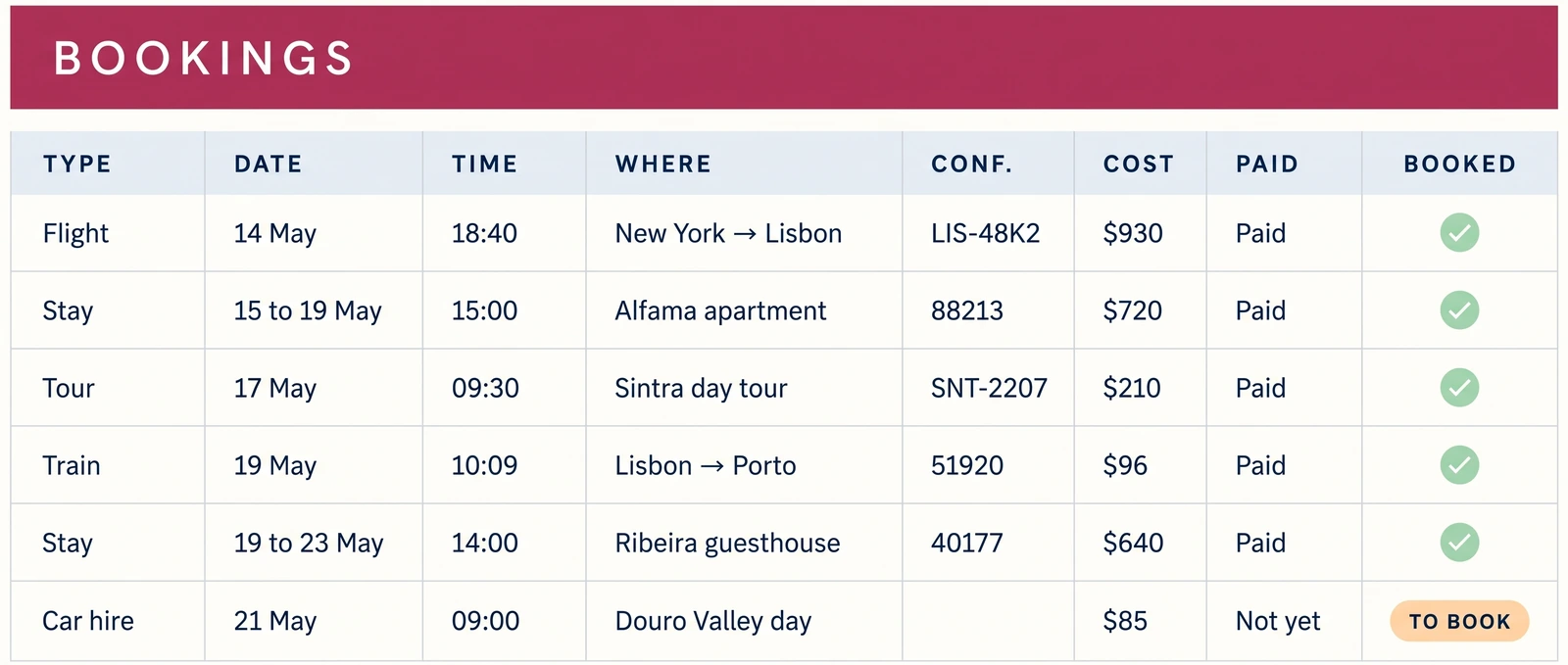
The sample's booking rows show the kind of detail that can be hard to fit on a one-page printout: travel date, time, where, confirmation, cost and payment status. You can keep that fuller record in a spreadsheet or database, then print only the details that matter for a particular day.
Choose a Format by How You Will Use the Plan
Choose the format you are most likely to keep current. A spreadsheet fits a trip where dates, bookings and costs change together. Notion fits a group that already plans in its pages. Paper fits a day when you want one short view to carry or mark up.
Choose a spreadsheet for connected details
Keep one booking record and let the day plan refer to it. If you build your own, test one booking before filling every row. Check that the time, place and cost appear where you expect. Treat any printout as a copy of that working file.
Choose Notion for a familiar workspace
Use a Notion page for the trip overview and list entries for bookings if that is already how you plan. Keep the fields short enough to scan. Before going offline, download the pages and view you need in the app.
Choose paper for the moments you want off-screen
Print the details needed for one day: where you are staying, a timed booking, transport notes and a contact. Make the page near departure. If a booking changes, print a fresh copy and retire the old one.
Build a Travel Planner Template for One Trip
You can set up a useful travel planner in a blank spreadsheet, a Notion workspace or a notebook. Keep the first version small, then add fields as the trip needs them.
- Add dates and travellers. Put the start and end dates at the top. Add a name or initials for each person who needs to check the plan.
- Record the fixed bookings. Add flights, stays, transport and timed tickets. Keep confirmation details with each booking, not in a second note.
- Make one block for each day. Add the stay and the morning, afternoon and evening. Leave open time empty until you decide what to do.
- Connect the costs to the plan. Add a planned amount beside a booking if it affects the budget. If you use two currencies, label each one and note the rate you entered.
- Make packing and document lists separate from the day plan. A reusable list belongs in a place you can copy for the next trip. Keep trip-specific documents and contacts with the current dates. U.S. travelers going abroad can add the State Department's International Traveler's Checklist as a reference for document reminders; it asks travelers to organize required documents and copies.
- Check how everyone will use it. Share the file, test the phone view, download Notion pages for offline access, or print the pages you need. Do this before departure, while you can still fix a missing detail.
The sample day gives you a practical check. Can another traveller see the Alfama stay, the 09:30 tour and the afternoon plan without searching through email? If a field is hard to find, move it beside the day or booking it affects. If building connected fields is more work than you want, start from a ready-made travel planner spreadsheet and edit a copy.
For a spreadsheet-first version, this travel planner spreadsheet walkthrough explains how to choose the tabs that fit the trip. You can also copy the basic table above into a blank sheet and change the columns to match your own plans.
What the Ultimate Travel Planner Includes
The Ultimate Travel Planner (ultimatetravelplanner.site) is a ready-made trip itinerary spreadsheet with 12 connected tabs in Google Sheets and Excel. It includes a filled-in Lisbon and Porto sample trip, a clean copy, and two printable pages: a one-day plan and a packing checklist in US Letter and A4.
The tabs cover trip overview, itinerary, day plan, bookings, budget, spending, packing, documents and contacts. The format is designed for trips up to 60 days and up to eight travellers. You type the exchange rate yourself. It does not import booking emails or update currency rates live.
If you want to start from a file where the bookings and days already work together, the Ultimate Travel Planner trip itinerary spreadsheet includes the sample and clean copies. Use the sample to see how the tabs connect, then work in a copy for your own trip. The included printable pages can serve as a one-day view when you want paper.
The free method above still works if you would rather build your own. Choose the format you will maintain, keep each trip's dates and bookings together, and make a paper or offline copy before you need it.
Why Trust This Article
The worked example comes from the Lisbon and Porto sample trip included with the Ultimate Travel Planner. Product details here are limited to its published contents and setup notes. The format table compares that sample with current platform instructions; it is not a timed test. We checked the official Google Sheets, Microsoft Excel, Notion and U.S. Department of State pages on 19 October 2026. Read our About page for the publisher and editorial policy for how we prepare and correct posts.
Frequently asked questions
What should a travel planner template include?
Start with dates, where you stay, bookings and a day-by-day plan. Add a budget, packing list and document notes when your trip needs them. Keep each item close to the day or decision it affects.
Is a spreadsheet or Notion better for travel planning?
Choose a spreadsheet if you want a grid and calculations in one file. Choose Notion if you already work with its pages and databases. The better fit is the one your travel group will open and update.
Can I use a Notion travel planner offline?
Yes, in Notion's desktop or mobile apps after you make the pages available offline. Download important subpages separately. Notion says database pages include the first 50 rows of the first view.
How do I print a travel planner from a spreadsheet?
Choose the sheet or cell range you need, set the page layout, then preview before printing. Google Sheets and Excel both document print settings for selecting and fitting worksheet content.
Should I make a separate travel planner for each trip?
Use a fresh copy for each trip so dates and bookings stay separate. Carry over reusable material such as a master packing list, then clear trip-specific details.
Sources
Keep reading
Itinerary Templates
Travel Itinerary Template: What a Day-by-Day Plan Needs (and a Sample Trip, Filled In)
Travel itinerary template: what a day-by-day plan needs, how to fill one in, and a sample 10-day trip to Lisbon and Porto worked from morning to evening.
· 12 min read

Itinerary Templates
Travel Itinerary Template for Google Sheets: Set Up a Trip, Step by Step
Travel itinerary template Google Sheets setup: six steps from your own copy to the Day Plan on your phone, worked on a 10-day Lisbon and Porto trip.
· 7 min read

Itinerary Templates
Travel Planner Spreadsheet: The 12 Tabs a Trip Uses (and the 4 You Can Skip)
Travel planner spreadsheet tabs explained: which of the 12 a weekend trip needs, which a 3-week trip needs, and the 4 you can skip, on a sample trip.
· 7 min read
