Travel Itinerary Template for Google Sheets: Set Up a Trip, Step by Step
Travel itinerary template Google Sheets setup: six steps from your own copy to the Day Plan on your phone, worked on a 10-day Lisbon and Porto trip.
By Ultimate Travel Planner by Cosmo Suite · Editorial policy
Published · 7 min read

The flights are booked. Now there are eleven confirmation emails, a hotel address in a screenshot, and nobody can say where you sleep on night four.
Anyone who types travel itinerary template google sheets into a search box is at this point. They want one place for the plan, and they want to open it on a phone at the airport without asking anyone for it.
The short answer: a Google Sheets itinerary works when you enter the bookings first and let the days read from them. Set up in that order, the sheet is mostly filled in before you plan a single sightseeing hour. Here is the order, worked on a 10-day trip to Lisbon and Porto.
The Plan in Brief
- Make your own copy. File, then Make a copy, so the original stays clean for the next trip.
- Dates and travellers first. The date and weekday for every day come from those two entries.
- Bookings before sightseeing. Fixed dates anchor everything else.
- Check one day at a time. Open a single day on its own page, on your phone as well as your laptop.
What a Google Sheets Itinerary Template Has to Do
A travel itinerary template is a ready-made layout for the day-by-day schedule of a trip. A good one answers four questions fast: where you sleep tonight, what is booked today and at what time, what the free hours hold, and how you get to the next stop. If a sheet makes you hunt for any of them, it is a grid with nothing behind it.
Google Sheets is free with a Google account, it opens on a phone, and the same file can be shared with whoever is travelling. Where templates differ is whether the cells talk to each other. In a blank grid you type the hotel name on four different rows. In a linked file you type it once.
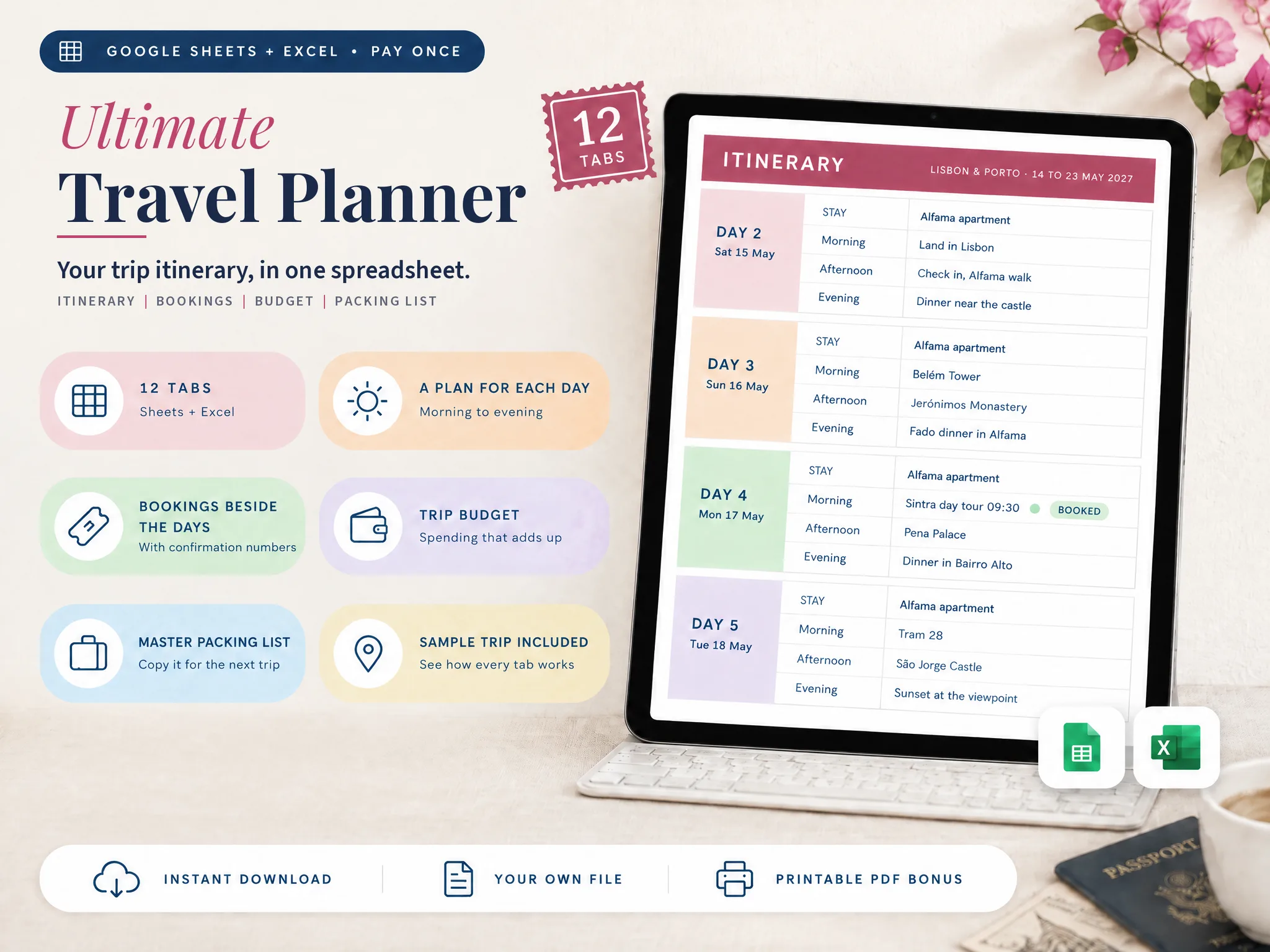
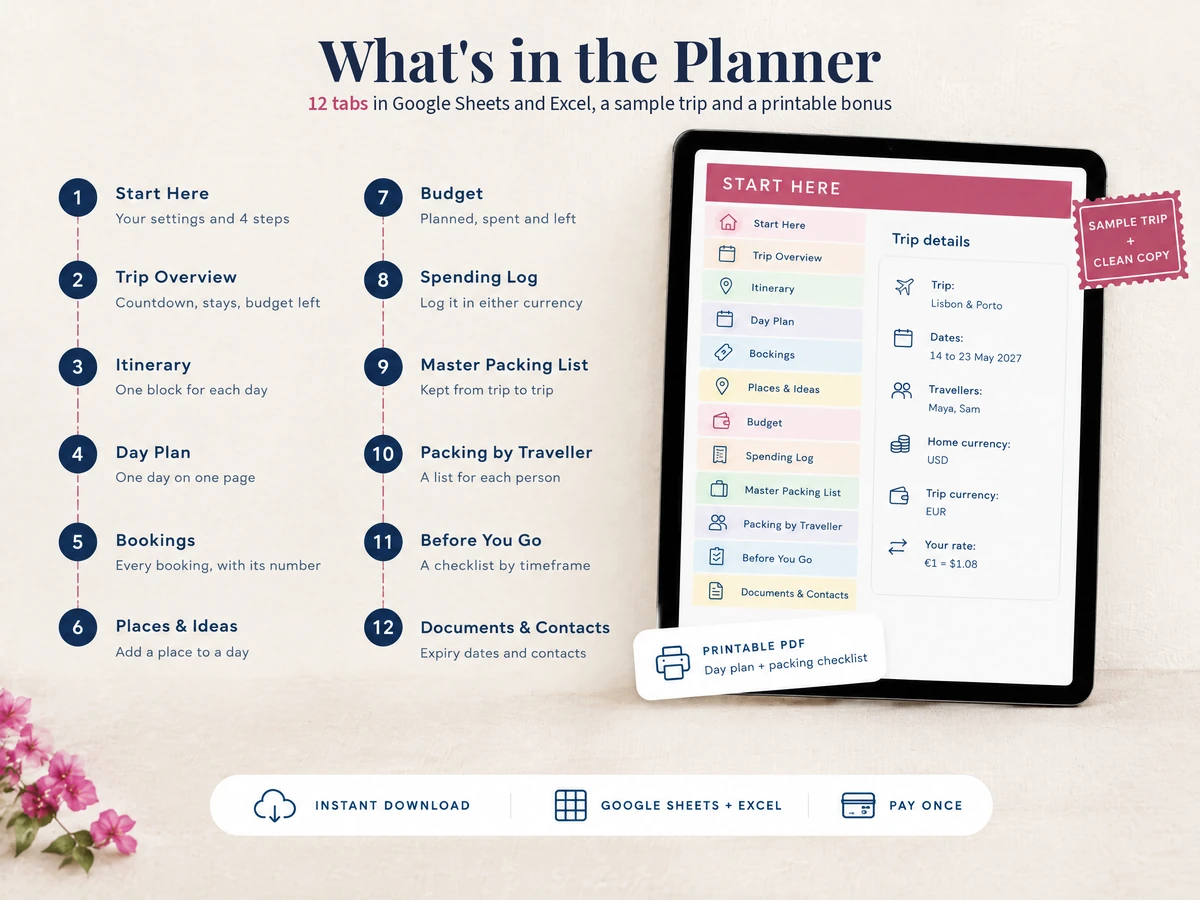
The sample file we use below has 12 connected tabs for a trip itinerary. They are: Start Here, Trip Overview, Itinerary, Day Plan, Bookings, Places & Ideas, Budget, Spending Log, Master Packing List, Packing by Traveller, Before You Go and Documents & Contacts. You do not need all twelve to start. The first five carry the plan.
A Day From the Sample Trip
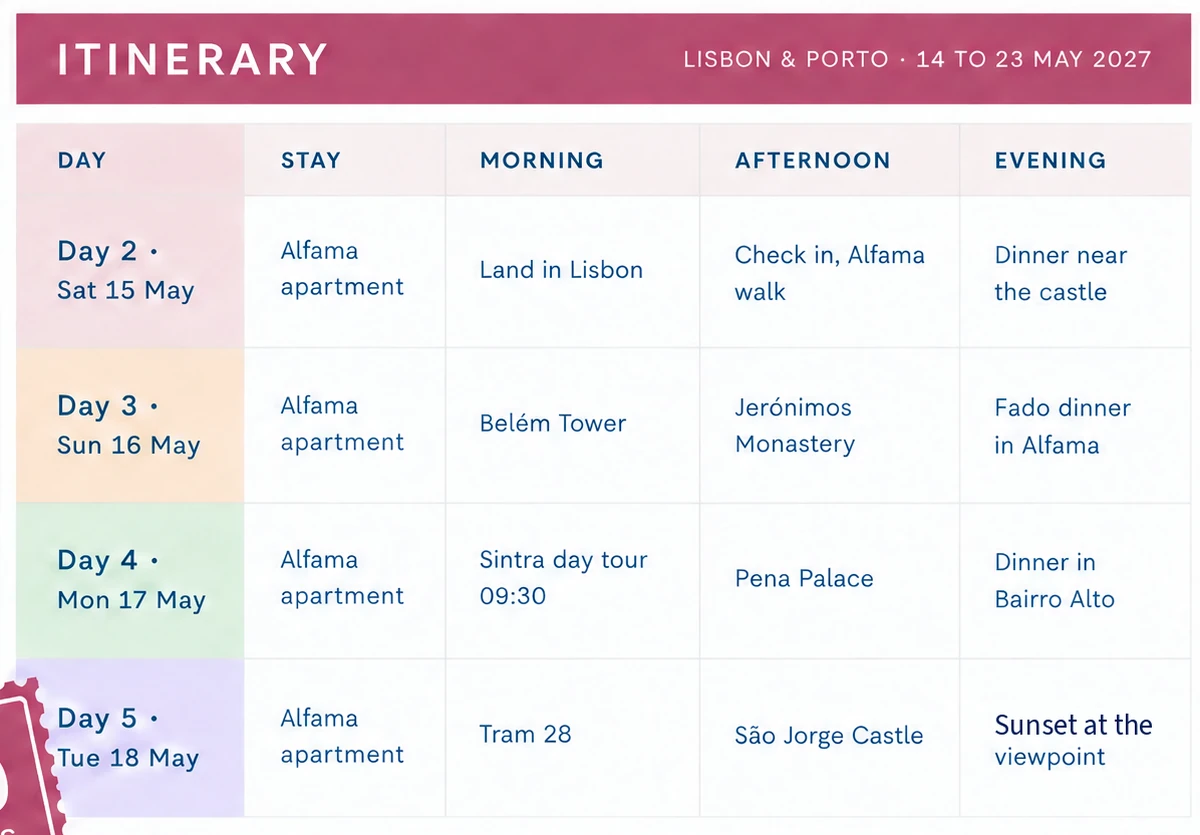
[Original data] For example, the sample trip runs Friday 14 May to Sunday 23 May 2027 for two travellers, Maya and Sam. Day 2, Saturday 15 May, is the arrival day, and it shows what a linked sheet does best:
- Stay: Alfama apartment
- Morning: Land in Lisbon
- Afternoon: Check in, Alfama walk
- Evening: Dinner near the castle
Nobody typed the apartment name on that day. It came from the Bookings tab, where the stay runs 15 to 19 May, and day 2 falls inside that range. The same happens on days 3, 4 and 5 without another keystroke. Change the stay dates in Bookings and the nights move with them.
Travel Itinerary Template Google Sheets Options: Which Fits Your Trip
Search results for this keyword are mostly marketplace listings and template galleries. They fall into a few groups, such as blank grids and marketplace files, and each suits a different trip.
| Type of template | Works well for | Where it runs out |
|---|---|---|
| Blank grid from a free gallery | A weekend with two or three bookings | You build the structure and retype every fact |
| Printable layout saved as a sheet | A one-page day sheet | One layout, hard to extend past a few days |
| Marketplace listing (Etsy and similar) | Someone who wants a styled file quickly | Tabs vary by seller, and many are Sheets only |
| Linked file with a sample trip | A multi-stop trip with real bookings | A few minutes to learn the layout |
The longer the trip and the more bookings it has, the more the linked version earns its place. For a two-night city break, a free grid is plenty.
How to Set Up a Trip in Google Sheets
The steps below work in any itinerary sheet. They follow the order in which the sample trip was built.
Step 1: Make your own copy
Open the template and choose File, then Make a copy, name it and pick a folder, as Google's help page for files describes. You need a free Google account. Keep the original untouched. The copy is your trip; the original is what you copy again next year.
Step 2: Set the dates and the travellers
Enter the first and last day of the trip and who is going. In the sample, 14 to 23 May 2027 gives 10 days and 9 nights, with Maya and Sam as travellers. Dates and weekdays for every day follow from those two entries, so you never type "Wed 19 May" by hand.
Step 3: Add the bookings first
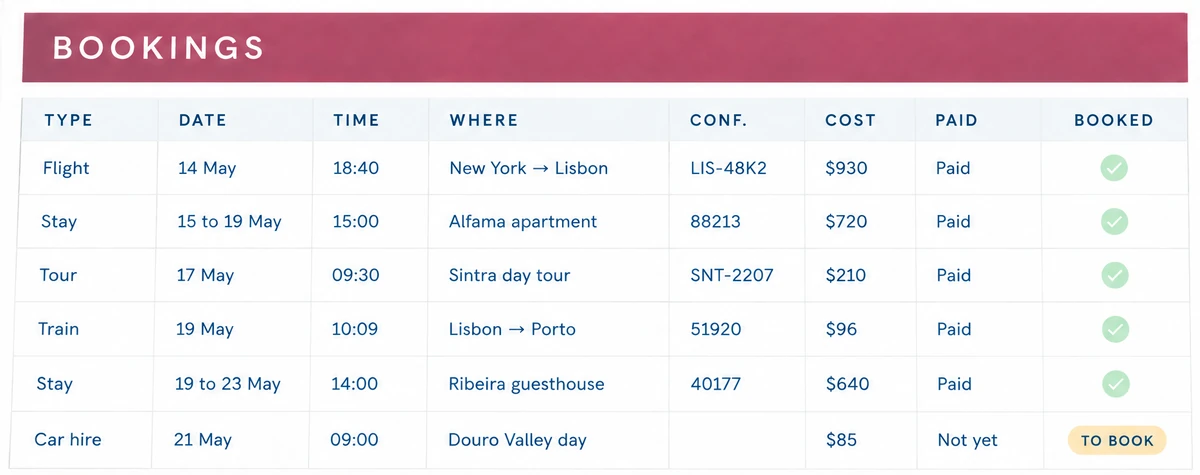
The sample has nine bookings: two flights, two stays, a train, a Sintra day tour, a dinner in Ribeira, a car hire and an insurance policy. Each row has a date, a time, a place, a confirmation number, a cost and a tick for booked or not. Eight are booked and one, the car hire, is still marked to book. That one marker is a to-do list you did not have to write. The screenshot shows six of the nine rows, including the car hire.
Step 4: Check the nights
Once the stays are in, every night has an answer. In the sample, the Alfama apartment covers 15 to 19 May and the Ribeira guesthouse covers 19 to 23 May. If a night is blank on your own trip, you have found the gap before a front desk found it for you.
Step 5: Block out each day, loosely
Now add the plan: one line each for morning, afternoon and evening. Day 8 of the sample is a Douro Valley drive, a riverside lunch and back in Porto by evening. Three lines make a full day. Consider day 3 of the sample: Belém Tower, Jerónimos Monastery and a fado dinner, and nothing else. Leave room around the fixed points, because a day filled hour by hour breaks at the first late train.
Step 6: Open one day on your phone
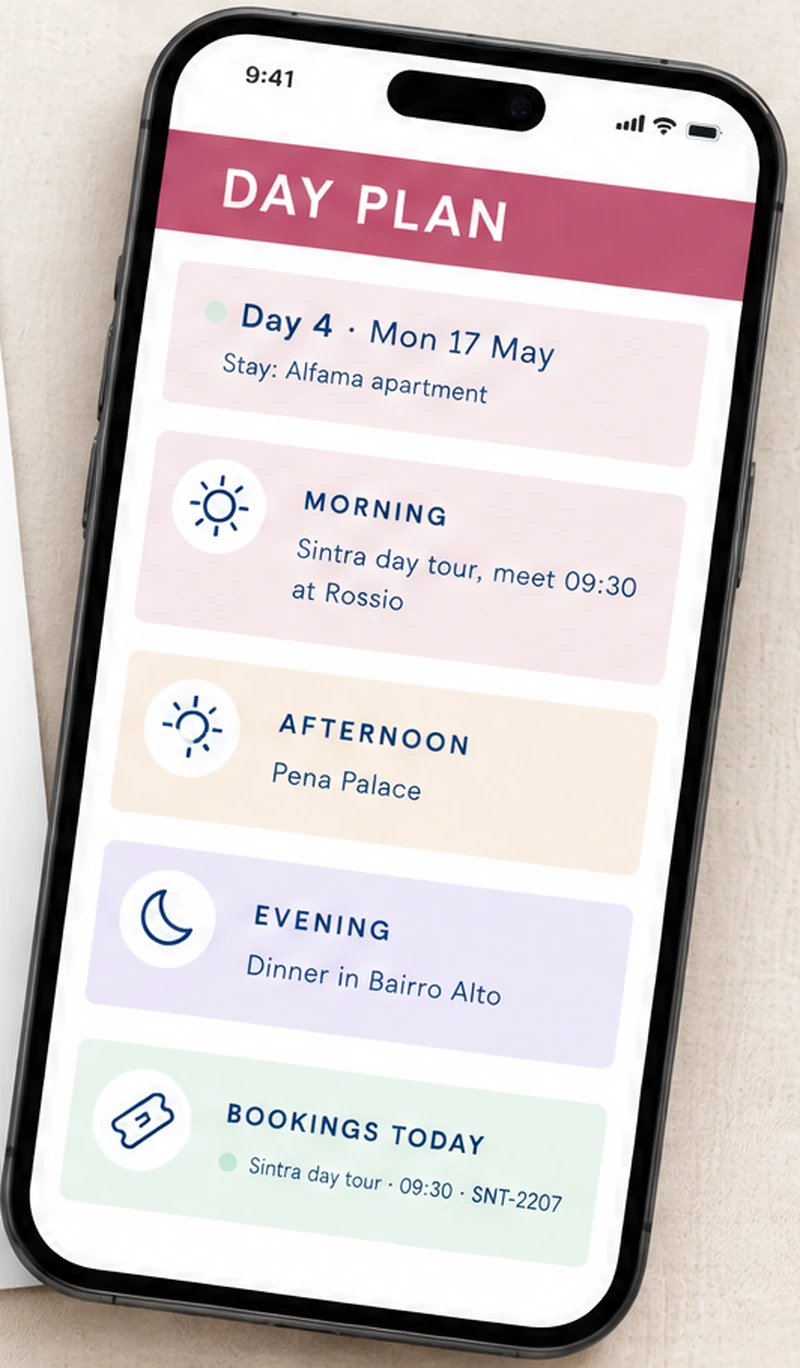
The last check is the one most people skip. Open the Day Plan tab, which is the one-day view, pick a day from the dropdown and read it on your phone in the Google Sheets app. It should show the stay, the plan and every booking for that day, with times and confirmation numbers. If a booking is missing there, it is missing from the trip.
Sharing the Sheet and Working Offline
Someone at home should have the plan too. Share the file from Drive and choose a role for each person: viewer, commenter or editor, as Google's sharing guide explains. Most travel companions only need to view. For trips abroad, USAGov also points U.S. citizens to travel advisories and the Smart Traveler Enrollment Program, which is worth a line in the Documents & Contacts tab. Version history shows who edited what, which settles the question of who moved dinner.
For a place with weak signal, plan ahead. Google lists offline editing for computers using Chrome or Microsoft Edge, so set it up before you leave. Printing the Day Plan for each travel day is the backup that needs no battery.
Mistakes That Break a Sheets Itinerary
Most sheets fail in the same few ways.
- Plans before bookings. The sightseeing you wrote for Tuesday lands on the day you are on a train.
- The same fact typed twice. An address in three cells becomes three versions the week a booking changes.
- No "to book" marker. The car hire is still unreserved the night before and the page does not say so.
- No clean copy. The next trip starts from the last trip's leftovers.
[Unique insight] A plan built from the bookings outward avoids all four. The habit that keeps it honest is checking one day on its own page before you travel.
Why Trust This Article
The Cosmo Suite team wrote this guide and built the Ultimate Travel Planner, so we are not neutral about spreadsheets. We say below where a free grid is enough. Our methodology is plain: we counted every figure from the file's own sample copy, which has 10 days, nine bookings and 12 tabs. We did not time a setup, so this guide makes no promise about how long it takes. Google's help pages were checked on 7 October 2026 (version history on 5 October). See about us and our editorial policy, and check your own booking times before you travel.
Where the Ultimate Travel Planner Fits
A plan and the bookings behind it usually live in different places. The Ultimate Travel Planner at ultimatetravelplanner.site is a trip itinerary spreadsheet with your bookings beside each day, with 12 connected tabs in Google Sheets and Excel.
You enter dates, travellers and bookings once. The Itinerary is the tab with one block for each day, and it fills in each day's date and where you stay that night. The Day Plan is a tab that shows one day on a page with its bookings. Budget counts booking costs toward their category, and the Master Packing List starts a list for each traveller, up to eight. Trips can run to 60 days. Each file comes as a filled-in sample and a clean copy, plus two printable PDF pages.
It does not import bookings from email, it books nothing, and the exchange rate is the one you type. For the full method behind it, read the travel itinerary template guide. If you want a ready-made Google Sheets trip planner it costs $9 once. If a free grid does the job for your trip, use that and keep the order above.
Frequently asked questions
Is there a free travel itinerary template for Google Sheets?
Yes, several free ones exist, mostly blank grids or galleries of printable layouts. They work for a short trip. Once a trip has several bookings, check whether the days read from the bookings, because a grid you retype by hand drifts out of date quickly.
How do I make my own copy of a Google Sheets template?
Open the file, choose File, then Make a copy, name it and pick a folder in Drive. You need a Google account. Do this for every trip and keep the original untouched, so the next trip starts from a clean file.
Can I use a Google Sheets itinerary on my phone?
Yes, with the Google Sheets app. A wide itinerary grid is awkward on a small screen, so use a tab that shows one day at a time. Setup itself is easier on a computer.
Can several people edit the same itinerary?
Yes. Share the file from Drive and give each person viewer, commenter or editor access. Version history shows who changed what, so a moved dinner is easy to trace.
Should I use Google Sheets or Excel for an itinerary?
Use whichever you already open without thinking. Sheets is easier to share with people who have a Google account. Excel suits people on Microsoft 365. The layout matters more than the program.